

Microsoft did something quietly significant two weeks ago.
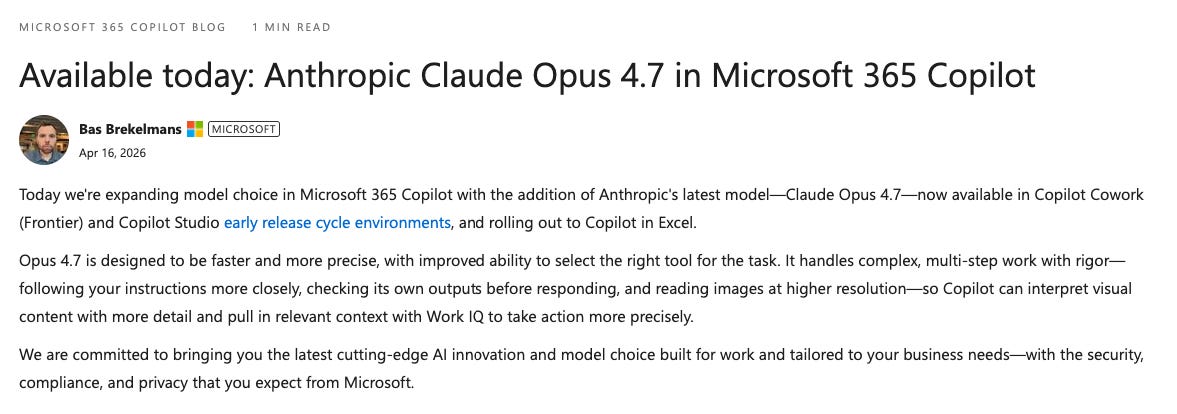
On April 16, they added Claude Opus 4.7 directly into Microsoft 365 Copilot. Inside Excel. Inside PowerPoint. Inside Cowork. Inside the model picker.
For most users this is just another option in a dropdown.
For finance teams it changes the entire stack.
The single biggest reason CFOs hesitate on AI is governance. Pasting a P&L into ChatGPT means your numbers leave your environment. Uploading a forecast to Claude means the same. Even with enterprise SOC 2, the legal team flinches every time someone hits paste.
Microsoft just removed that friction.
You now have access to the most capable AI model on the planet.
Opus 4.7, the same model we used two weeks ago to surface contradictions across three financial documents. Running inside your own Microsoft 365 tenant.
The model that took finance leaders by storm two weeks ago is now native to the place where finance work actually happens.
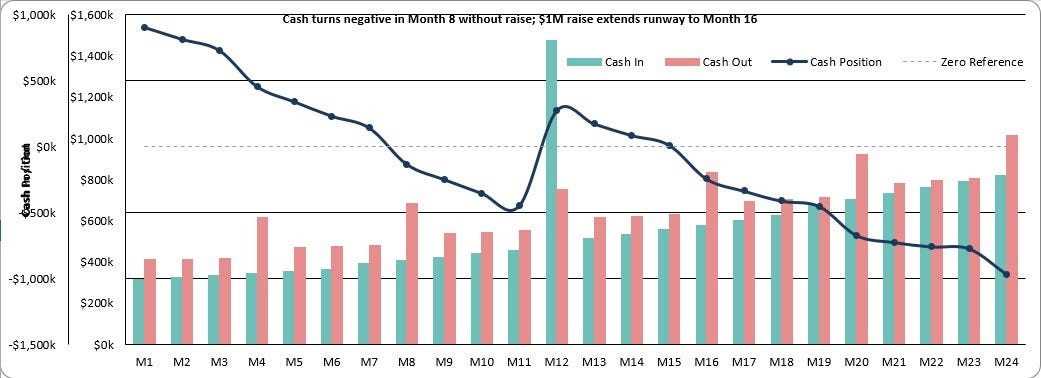
For this week’s newsletter, we tested it on the workflow most finance teams hate the most. The 24-month driver-based forecasting model. And then we asked Copilot to turn it into a board-ready PowerPoint deck.
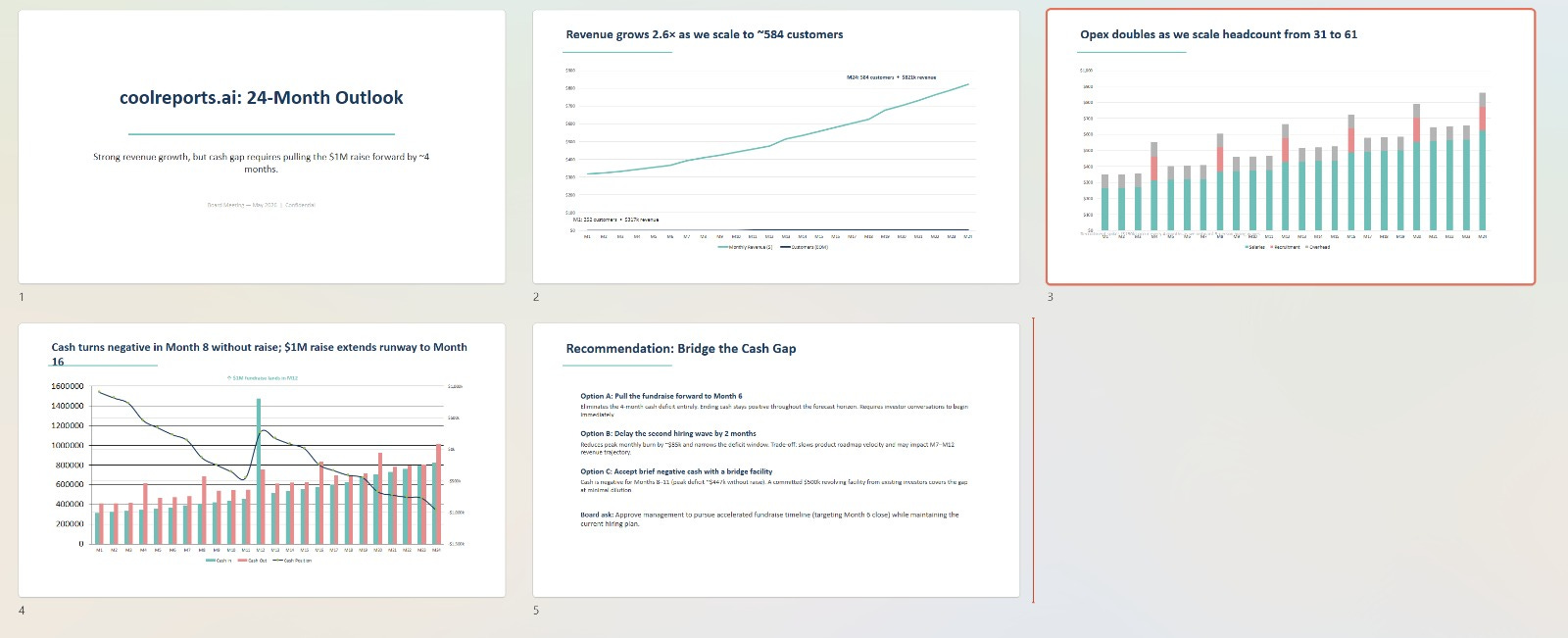
What came back is the moment Copilot stops being a chatbot and starts being a finance team.
Let’s dive in.
The full Copilot + Opus 4.7 workflow
Cool Reports, Inc. is a fictional but realistic SaaS company.
247 customers. $1,256 average MRR. $1M cash. 81% gross margin. $350K monthly opex. 31 employees. A board pushing for 24-month visibility on cash, runway, and the impact of a planned $1M raise in month 12.
A typical finance team builds this model in two days.
Someone in FP&A pulls historical data. Someone else builds the driver assumptions. The CFO reviews. Three rounds of edits. Then a designer turns it into board slides.
We did it in 25 minutes.
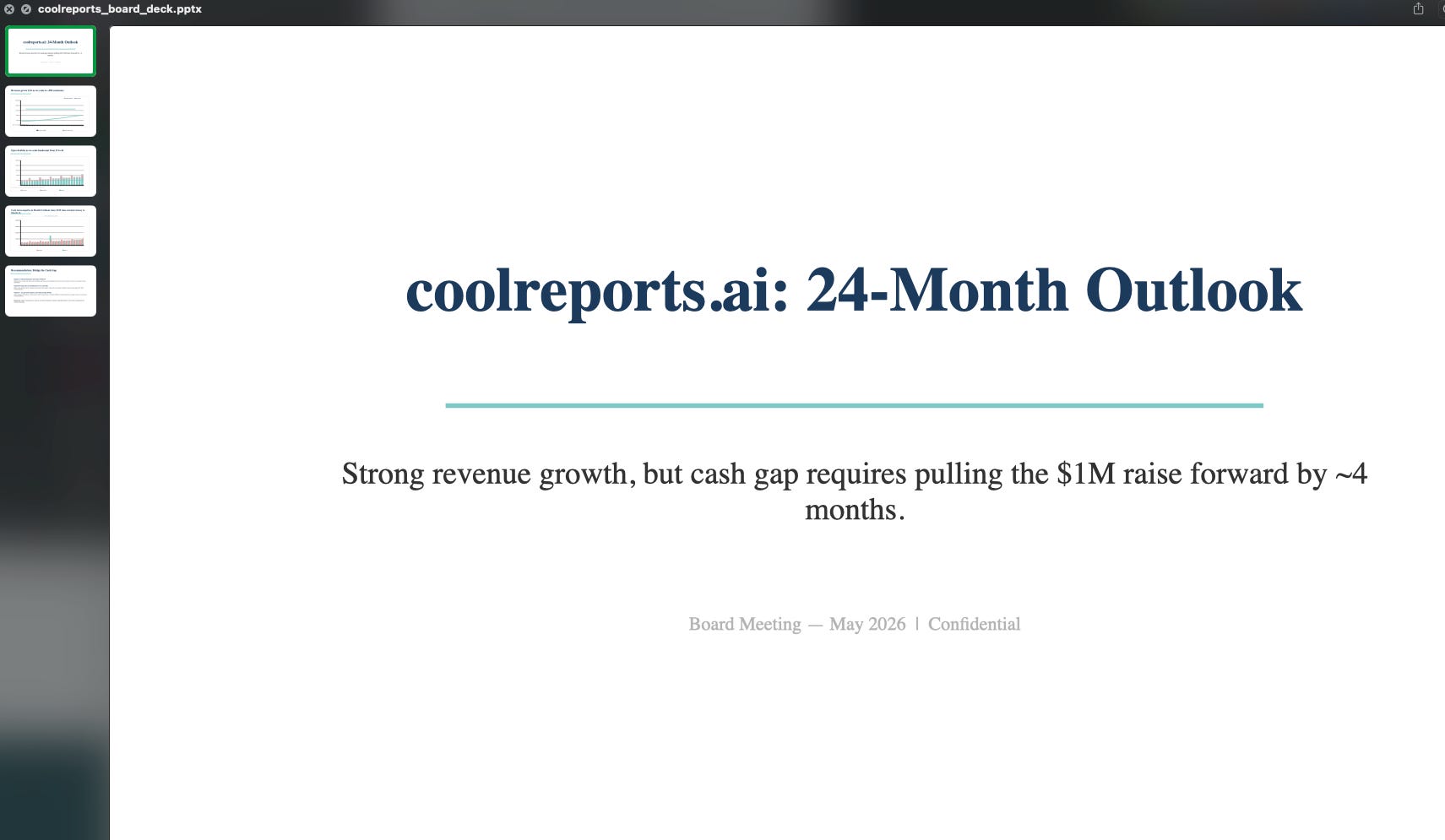
Two prompts. Inside Excel and PowerPoint. With Copilot using Opus 4.7.
Step 1: Open Copilot in Excel and select Opus 4.7
Open a blank Excel workbook. Click Copilot in the ribbon. In the Copilot pane, click the model selector at the top.
You will see three options. Microsoft’s default. GPT-5.5. Claude Opus 4.7.
Select Opus 4.7.
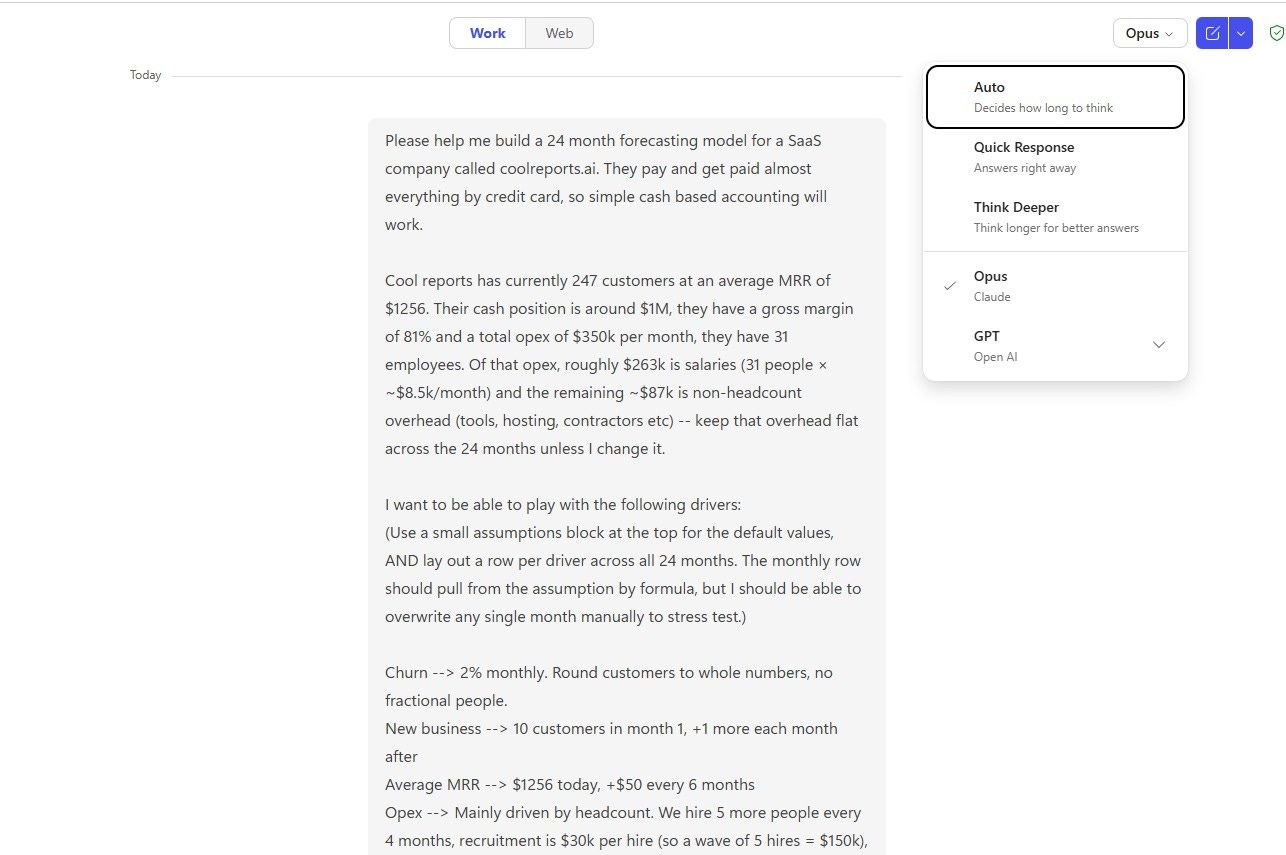
This is the moment most finance teams miss. The model selector is buried in the Copilot pane. If you do not switch it, Microsoft’s default handles your prompt.
The default is fine for emails. It is not the model you want for a forecasting model with multiple drivers, formulas tied to assumption cells, and presentation-ready visuals.
Switching to Opus 4.7 takes one click.
The output quality difference is enormous.
Step 2: Paste the driver-based forecast prompt
In a blank workbook, open the Copilot pane and paste this prompt.
Upload: coolreports_forecast.xlsx
COPY/PASTE PROMPT